Software Installation Guide
Before You Begin
Make sure you have A stable internet connection
You should Know
the program I use is called RustDesk.
Installation Steps
Download the Software
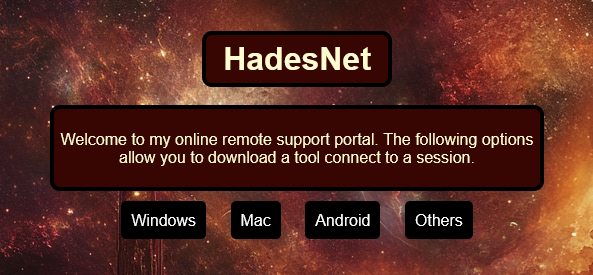
Visit the previous page for downloads. Choose the correct version for your operating system (e.g., Windows, macOS, Android).
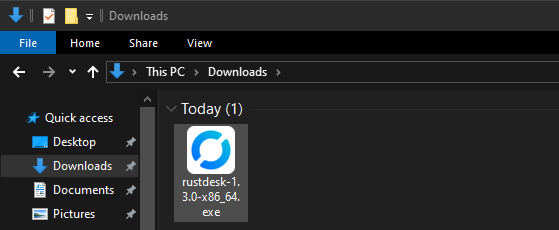
Run the Installer
Locate the downloaded file (usually in your "Downloads" folder) and double-click it to start the installation process.
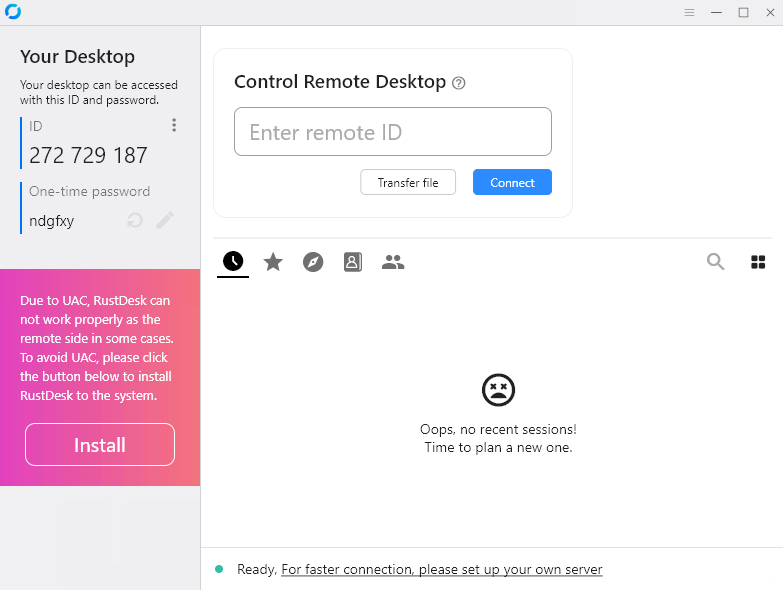
Click the button
Click on the big install button on the left side of the window.
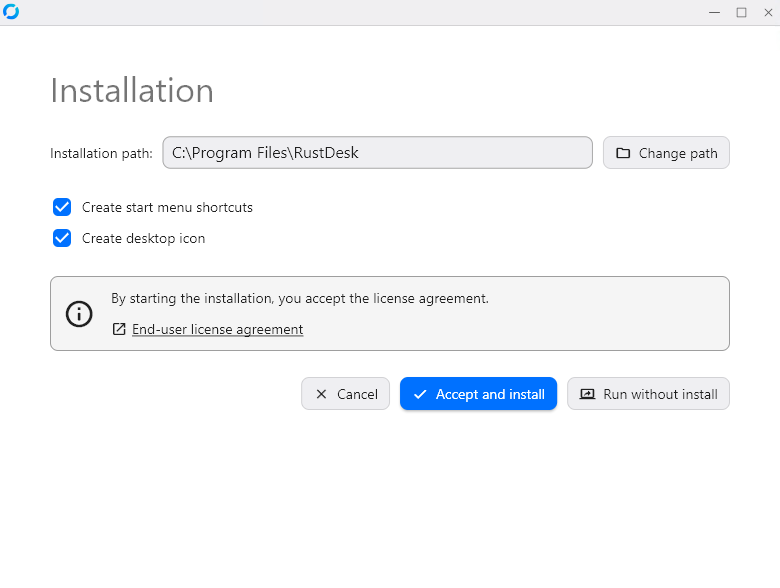
Click on the button that says accept and install.
Click on the button that says yes.
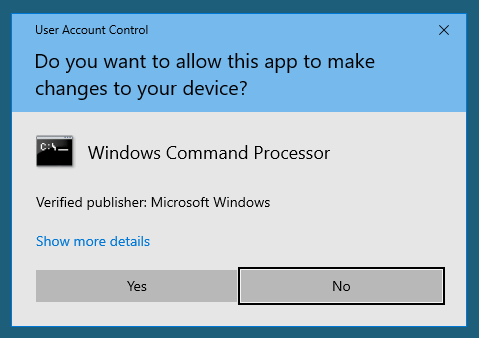
Complete the setup
Once the installation is finished, go back to the previous page for downloads.
Right click the button that says settings then select "Copy Link"
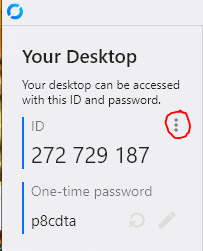
Go back into Rust desk and select the 3 dots next to ID then select "Network"
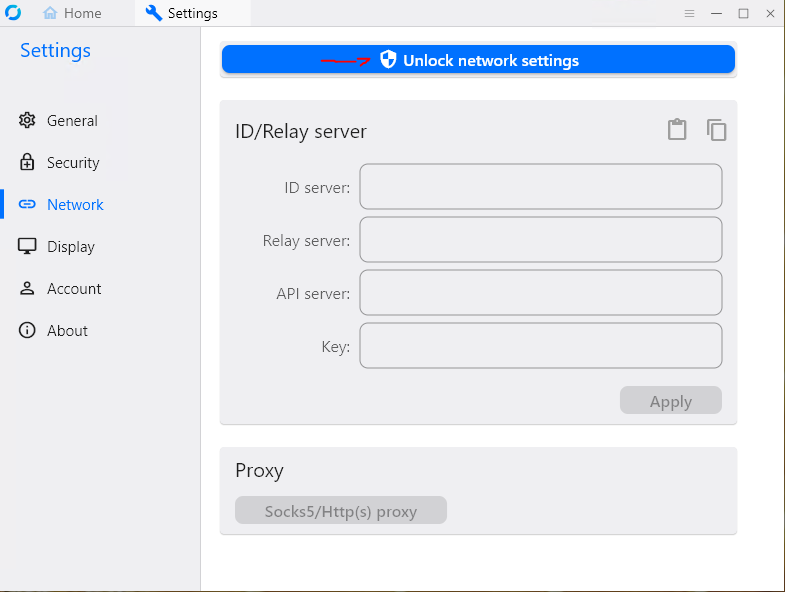
Then click the Unlock Network button at the top. (You may need to click yes again)
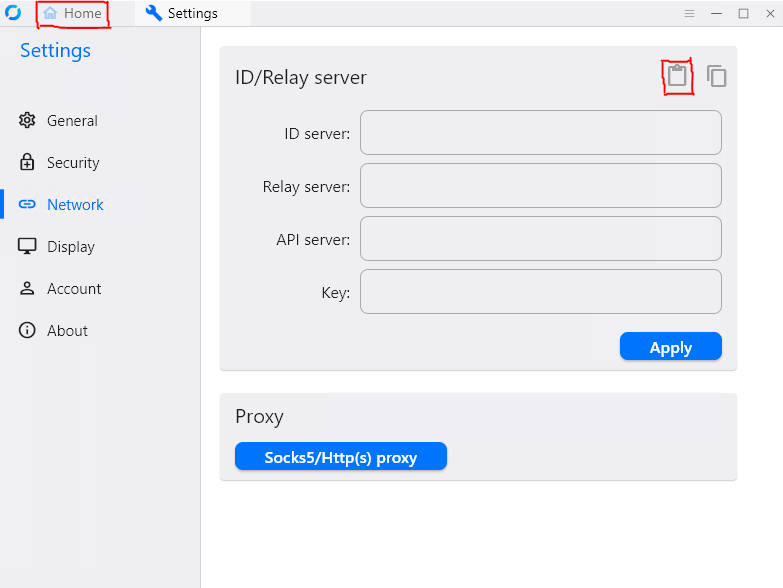
The last step is to click on the paste button and then the home button in the top left.
Send the Code
Once you are back on the homescreen send me your ID and One Time password.
These codes can only be used by me and will not work for anyone else.
Troubleshooting
If you encounter any issues:
Send me an email, text, or call.